CRBYNDocs
carbyn.ai

Get started

  • Overview

Setup

  • 1Install with TestFlight
  • 2Your first five minutes

Help

  • Support & account
  • support@carbyn.ai

Step 1 · 5 min

Install Carbyn with TestFlight

1Open your Carbyn invite#

Look for an email from TestFlight.
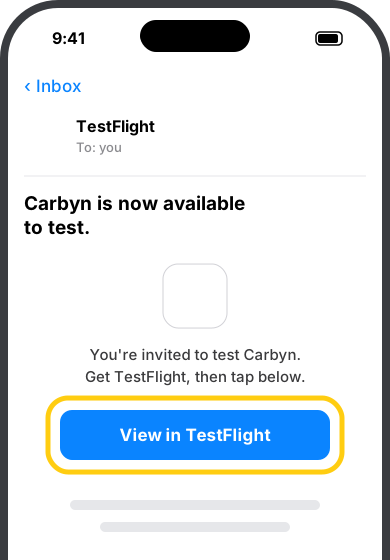
iPhone Mail screen: TestFlight invitation email with the View in TestFlight button highlighted
Tap View in TestFlight

2Get TestFlight#

No TestFlight yet? The invite sends you to the App Store. Install it, then tap the invite again.

Already have it? Skip to step 3.
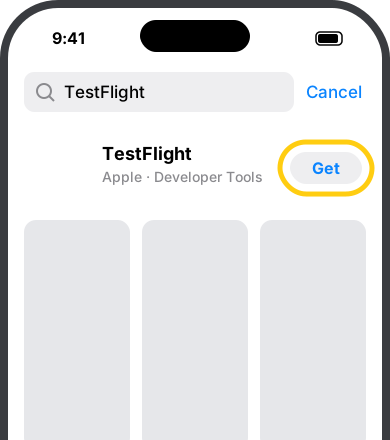
iPhone App Store screen: search results for TestFlight with the Get button highlighted
Tap Get

3Accept, then install#

Installed Carbyn before? You will see Update or Open instead.
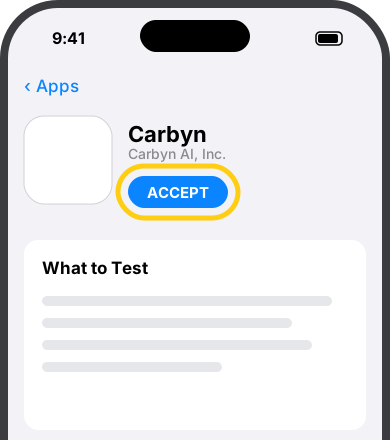
TestFlight app page for Carbyn with the Accept button highlighted
1 · Tap Accept
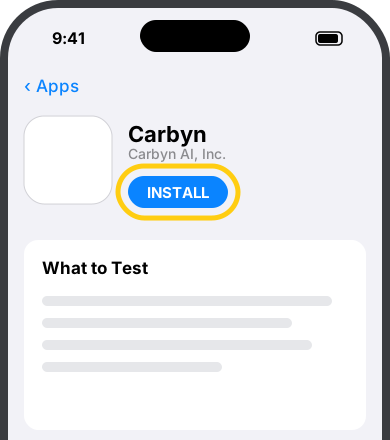
TestFlight app page for Carbyn after accepting, with the Install button highlighted
2 · Tap Install

4Open Carbyn#

Find it on your Home Screen and tap it.
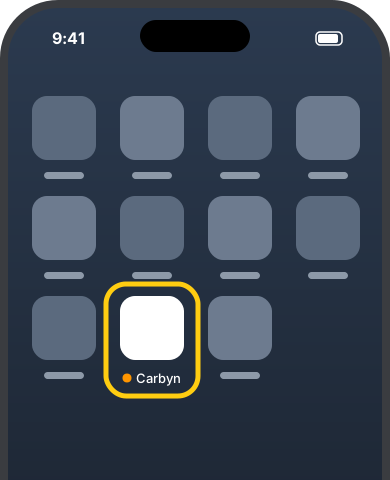
iPhone Home Screen with the Carbyn app icon highlighted and an orange beta dot next to its name
The orange dot means beta

Report a problem in 30 seconds#

1 · Take a screenshot: side button + volume up.
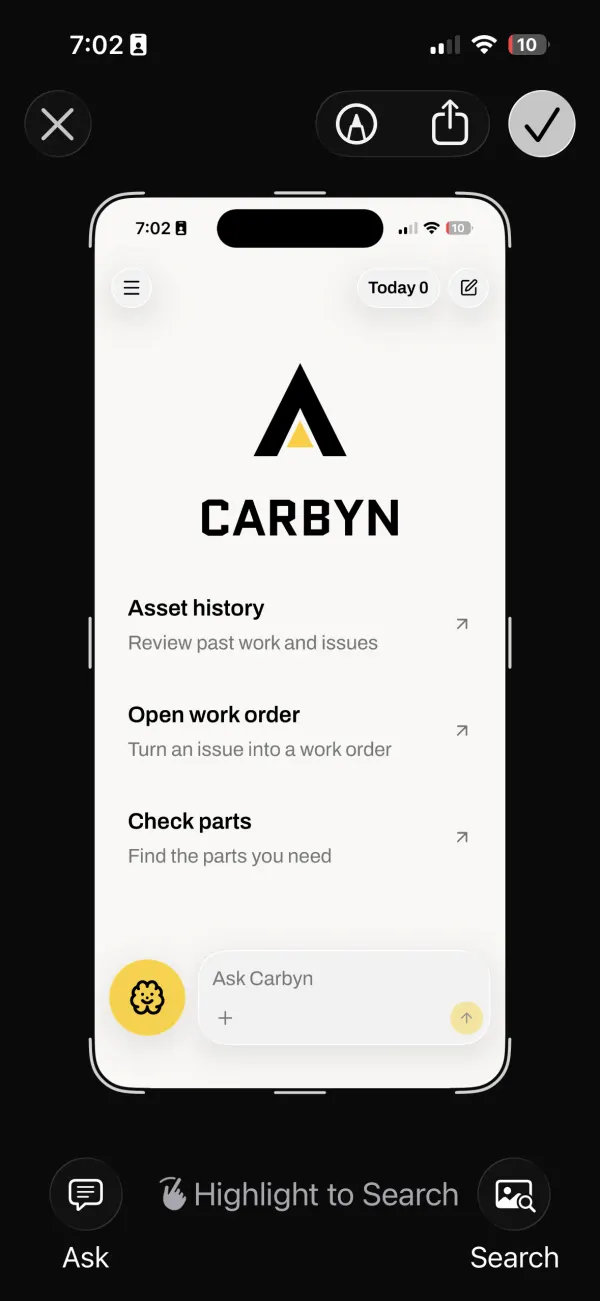
Screenshot preview of the Carbyn home screen with the check mark button at top right
2 · Tap the preview, then the check mark
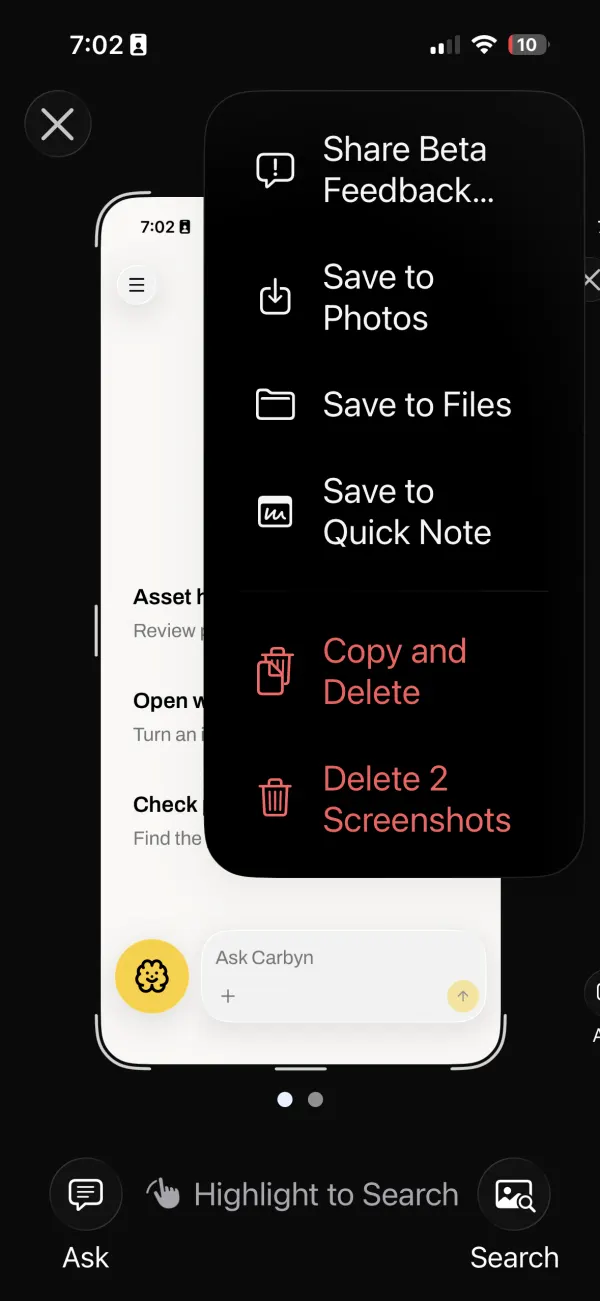
Screenshot menu with Share Beta Feedback at the top
3 · Share Beta Feedback
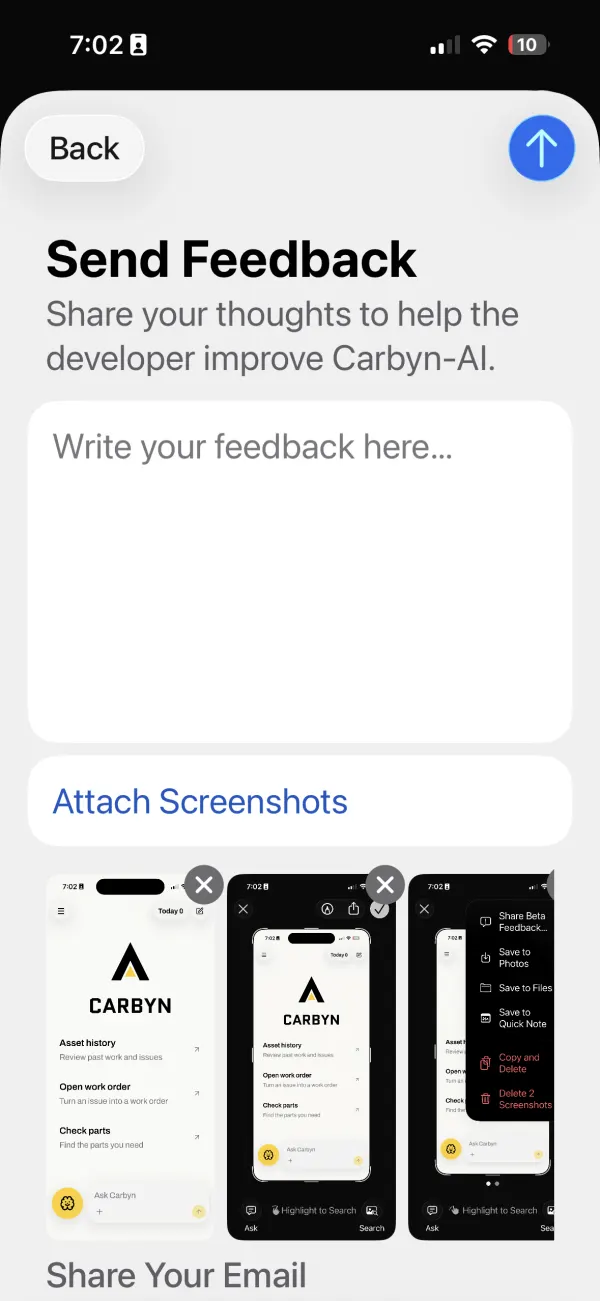
TestFlight Send Feedback form for Carbyn with attached screenshots and a send arrow
4 · Write it, tap send

Quick fixes#

Carbyn will not install
Update iOS to 16 or later: Settings › General › Software Update.
No invite email
Check spam for "TestFlight", or ask your admin for the beta link.
Carbyn stops opening
The build expired after 90 days. Open TestFlight and tap Update. Turn on Automatic Updates so it does not happen again.
Carbyn crashed
On the alert, tap Share, add a note, then Submit.
You want to leave the beta
TestFlight › Carbyn › Stop Testing.
← PreviousOverviewNext · Step 2 →Your first five minutes
Carbyn, AI Inc.TermsPrivacy